
← Back home
How to use your journal

Open it. Tap it. Fill it.

Six short guides, with the steps written out. Pick the one you need; you won't need them all. Short videos for each are on their way.

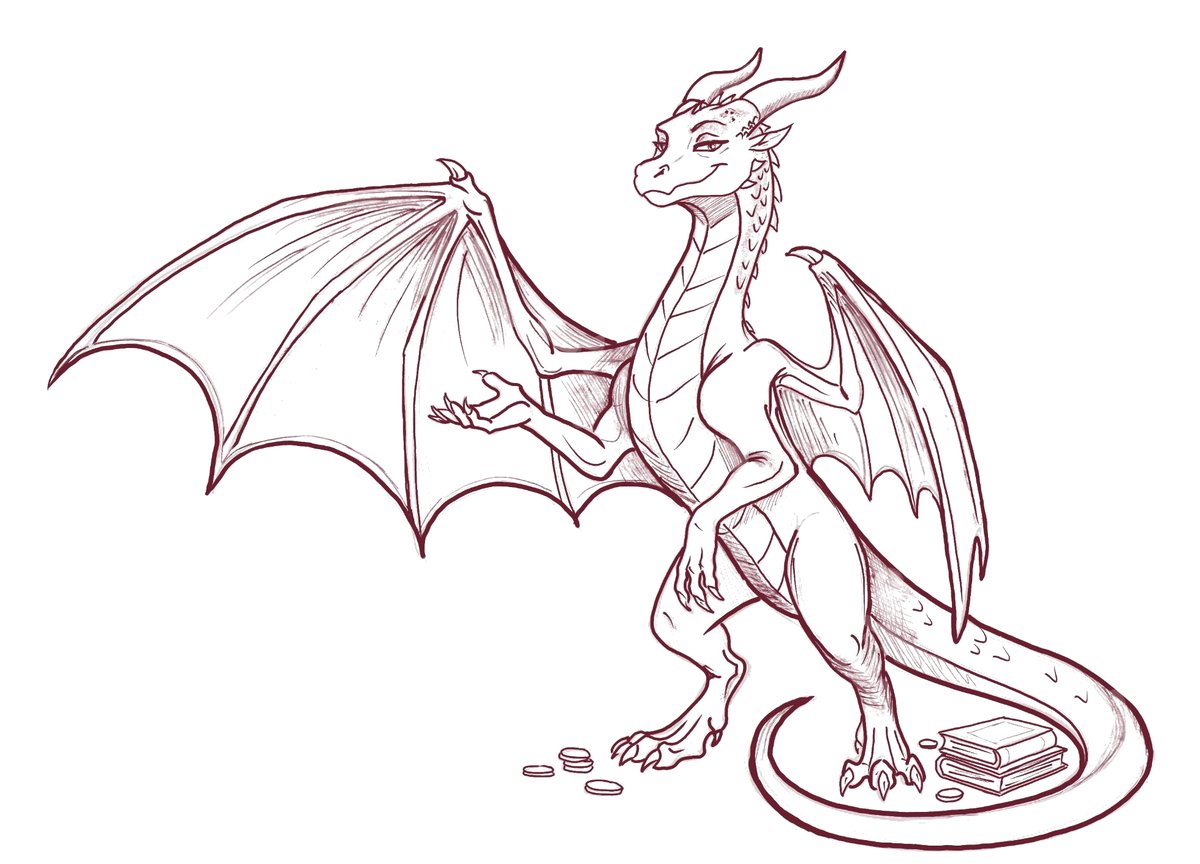
Duchess Gilda with one wing spread in welcome
Video coming soonOpening the PDF in GoodNotes
Step 1

Open your journal in GoodNotes

  1. On Etsy, open Purchases and reviews and tap Download files. Save the files to your iPad.
  2. In GoodNotes, tap + New › Import and choose the Hoard Notes PDF.
  3. It opens on the Home page. Keep the original file: it's your clean copy for next year.

Any PDF app works for writing. GoodNotes, Samsung Notes and Xodo are the ones we've tested the links in.

Video coming soonTapping the tabs and buttons
Step 2

Tap the tabs, never scroll

  1. Every tab on the side and every button on Home is a link. Tap one to jump there.
  2. On the Hoard list, tap a book's number to open its page.
  3. Tap the cave tab to get back Home from anywhere.

A tap draws a dot instead of opening the link? You're in pen mode. Switch to read mode (or put the pen down and tap with your finger) and tap again.

Video coming soonWriting a book page, colouring a coin and placing a sticker
Step 3

Write, colour and add stickers

  1. Pick the pen tool and write on the lines, as on paper.
  2. Rate with the highlighter: colour the coins, flames and tears you want to give.
  3. Colour a glass in the Passport, or the season's seal when you hit your goal.
  4. Add a sticker: your journal comes with coloured stickers as PNG images. Insert one with your app's image tool, then move and resize it.

Save the stickers once in your app's sticker or Elements collection (GoodNotes has one), and they're a tap away every time.

Video coming soonSamsung Notes on an Android tablet
Step 4

Samsung Notes and Android

  1. Open Samsung Notes, tap Import PDF and choose the journal.
  2. Links work in read mode: tap a tab to jump.
  3. Switch to pen mode to write and colour.

Samsung Notes ignores typing fields, so use the main file here, not the tap and type bonus.

Video coming soonThe tap and type bonus file
Step 5

The tap and type bonus file

  1. Open the bonus file in Xodo, Adobe Acrobat Reader, or the Files app on iPhone and iPad.
  2. Tap a line to type instead of writing.
  3. Tap a coin and it turns gold; tap a flame and it fills. Save, and it stays.

Xodo shows a coloured highlight on the fields. You can switch it off in Xodo's settings.

Video coming soonPrinting a few pages
Step 6

Prefer paper? Print it

  1. Open the PDF on your computer and choose Print.
  2. Print only the pages you need, for example ten book pages at a time.
  3. Choose "Fit to page" so nothing gets cut off.

For personal use only: print as many pages as you like for yourself. Please don't share or resell the file.

Small questions

Can I use it again next year?

Yes. It's undated. Download a fresh copy from your Etsy purchases whenever you start a new reading year.

A link doesn't open. What now?

Check you're in read mode, not pen mode (step ii). Still stuck? Write to us with the page name and your app, and we'll fix it.

Does it work on a phone?

It opens on a phone, but it's made for a tablet: the writing lines are sized for an 11-inch iPad or similar.

Which file do I use, the main one or the bonus?

The main file is for handwriting. The tap and type bonus is for typing and one-tap colouring. Use one, or both on different devices.

Still lost in the hoard?

Write to us. The Duchess answers. Eventually.

hoardnotes@gmail.com